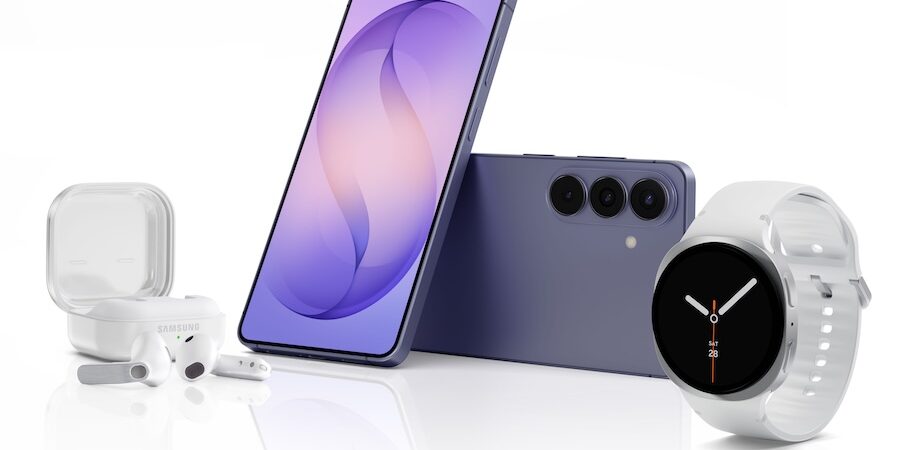
Samsung Galaxy Buds4 and Galaxy Buds4 Pro do much more than play music, podcasts, media recordings and conferencing audio with top-quality sound and a comfortable fit. In a busy work environment, Galaxy Buds4 can save time, enhance focus and make your day more productive.
Here are four essential tips for using your Buds4 in any workspace, whether you’re at home or in the office — plus a bonus feature to take your productivity further.
1. Auto Switch
Galaxy Buds4 were introduced with Samsung’s latest flagship mobile device, the Galaxy S26 Series. Pair Galaxy Buds4 with Galaxy S26 in just a few taps by holding them next to the mobile device, inside the charging case with the lid open, until you see the pairing prompt. Tap Connect, and you’re all set. Then, tap into one of Galaxy Buds4’s most convenient features by going into the Galaxy Wearable app on your mobile device and turning on Seamless Earbud Connection. This will enable Auto Switch.
With Auto Switch enabled and your Buds4 paired with any and all of your Galaxy devices — such as a Galaxy Book6 Series business laptop — Galaxy Buds4 and Galaxy Buds4 Pro will automatically switch between devices based on the task at hand. For example, if you’re watching a video on your PC and a colleague calls you on your phone, your Buds4 will automatically be activated when you pick up the call, with no manual toggling needed.
Likewise, when you hang up the call and return to watching the video on your Galaxy Book6, your Buds4 will switch back on their own.
Whichever devices you switch between, you can hear and be heard clearly during work calls, thanks to Hi-Res Audio and active noise cancelling (ANC). The combination of the two means your earbuds will maintain the integrity of your favorite audio, over Bluetooth, and filter out intruding ambient noise. From small reverbs to subtle textures, every detail remains dynamic and clear.
2. Home screen widgets
Most of us keep our phones on our desks while working on our business laptops to see incoming calls and texts, hear notification bells, catch news updates and check the weather. Home screen widgets allow you to quickly see information and access apps without unlocking your phone.
Widgets are one of the many ways to customize your home screens on foldables like Galaxy Z Fold7. The Buds widget is a no-brainer if you own a pair of Buds4. With it, you can monitor your Buds4’s battery charge and adjust the Noise and Touch controls from your foldable’s home screen.
Noise controls include ANC. Either adjust it yourself manually or allow the ANC feature to do so according to advanced, pre-trained algorithms. Whether you’re at a bustling industry event or strolling through an office corridor, your Buds4 will keep the audio you love or need front and center.
This means when someone stops by your desk to chat, you can turn down your Buds4’s volume on the widget instead of fumbling to take them out. And when you’re ready to return to work, use the widget to switch back to your work mode music. Really need to focus? Enable ANC.
All of the above may be accessed directly from the Buds widget. Find and install the widget by tapping any empty area on the home screen, then tapping Widgets and swiping up to add Buds.
3. Touch and gesture controls
Streamlining any operation means removing unnecessary steps. Galaxy Buds4 Series does this with touch and gesture controls that eliminate the need to take out your mobile device to adjust volume, change tracks or answer calls.
For example, to raise or lower the volume of the audio, simply swipe the blade of your Buds4 up and down. Single, double and triple pinches give you the power to play, pause and change tracks. Pinching and holding also turns on ANC. When a call comes in, pinch once to instantly answer it, or decline with a pinch and hold.
Head gestures can take and reject calls, too. Once the feature is enabled, simply nod your head naturally in a yes fashion to answer a call, or shake your head in a no fashion to not.
4. Galaxy Wearables
Galaxy Buds4 work in harmony with wearables like Galaxy Watch8 and Galaxy Ring, to round out your Galaxy ecosystem and maximize your productivity. With Galaxy watches, you can receive notifications, answer calls and texts, and control your Buds4, all from your wrist. The ring also feeds data to Samsung Health app to spur notifications through your earbuds. These paired wearables power even more productivity in your workday.
Once your Buds4 are connected to your phone or business laptop, pair them with your watch by going into Settings on the watch and tapping Connections, then Bluetooth. See full pairing instructions to assemble your Galaxy ecosystem and get the most out of its connection with Galaxy Buds4 and Galaxy Buds4 Pro.
Bonus tip: Don’t forget Galaxy AI features
Galaxy Buds4 provides access to Galaxy AI features like Live Translate and Interpreter, which provide real-time translations for anything you hear — from in-person conversations to phone calls and beyond. These features are incredibly useful in multilingual work environments or for international meetings, allowing you to understand conversations in different languages instantly without the need for a separate app. With Live Translate and Interpreter, Galaxy Buds4 help break down language barriers and make it easier to communicate and collaborate seamlessly.
Reach next-level productivity for your business with Samsung Galaxy S26/S26+, Galaxy Z Fold7and Galaxy Book6series today. If you’re not currently an Android or Galaxy user, make sure to try Galaxy for Work on your device today.