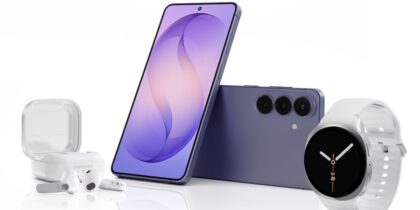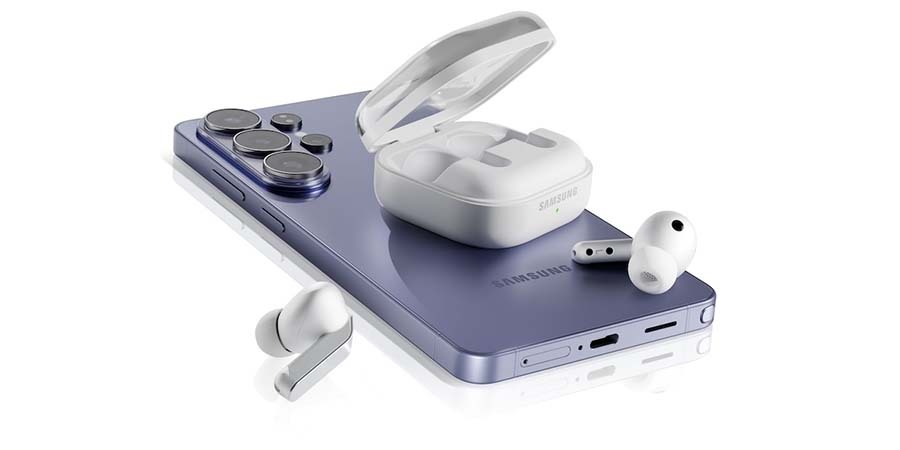
Pairing a new set of Samsung Galaxy Buds4 or Buds4 Pro to your latest Samsung mobile devices — Galaxy Z Fold7, Galaxy Z Flip7 and Galaxy S26 — is easy and seamless. Switching between apps and devices is equally effortless. Just follow these few steps:
Pairing earbuds to your device
Connecting your Samsung Galaxy Buds4 and Buds4 Pro to a mobile device is simple. Here’s how to do it using Bluetooth:
- Put your earbuds in pairing mode:
- Ensure the earbuds are snug in their charging case, with the lid closed.
Open the case lid to activate pairing mode.
- Ensure the earbuds are snug in their charging case, with the lid closed.
- Pair with your mobile device:
- After opening the case lid, a window automatically pops up on the screen of your Samsung device.
Tap “Connect,” and you’re all set.
- After opening the case lid, a window automatically pops up on the screen of your Samsung device.
- Adjust settings:
- On your device screen, tap the gear icon to open Settings.
- Tap Buds4 or Buds4 Pro button.
- On the next screen, find controls to adjust active noise cancelling levels, voice commands, head gestures, device connections, sound quality and more. Tap each to fine-tune.
Find ideal fit of earbuds
After pairing comes fitting. To find the most comfortable placement:
- Place Galaxy Buds4 gently in each ear, then adjust angle using blade.
- Hear a short sound feedback when fit is detected.
- Open Settings on device and tap the Buds4 button.
- Tap “Sound quality and effects.”
- On next screen, tap “Earbud fit test.”
- Press “Start” to begin fit analysis.
- See results in a few seconds. If it’s a “good fit,” begin using Galaxy Buds4; if it’s a “poor fit,” adjust earbud angle again and repeat.
Switching between calls and applications
Samsung Galaxy Buds4 makes switching between audio sources easy and intuitive. For example, if you’re listening to music on your Samsung Galaxy S26 Ultra and receive a call, you can answer in several ways:
- Pinch earbud blade once.
- Nod your head naturally in a yes fashion.
- Say, “Answer call.”
If you don’t wish to take the call:
- Pinch earbud blade and hold.
- Shake head horizontally in a no fashion.
- Say, “Reject call.”
Switching between devices
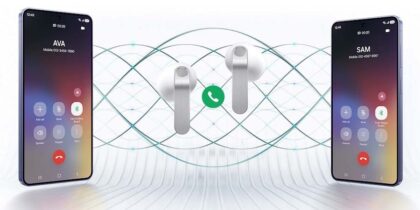
The seamless switch feature makes it easy to switch between audio sources when using your Samsung Galaxy Buds4. If you’re watching a recording of a meeting, interview or presentation on your Galaxy Tab S11 Series, for example, and receive a call, your earbuds automatically switch over to your mobile device so you can answer it.
Here’s how to enjoy seamless audio switching:
1. Requirements:
- Your device should be running One UI 6.1.1.
- Sign into the same Samsung account on all devices.
- Turn on the “Auto switch” or “Seamless earbud connection” feature in the Galaxy Wearable app.
2. Automatic pairing:
- Your connected earbuds pair automatically with devices using the same Samsung account.
3. How it works:
- Listening on your tablet? When a call comes to your mobile device, the earbuds switch to that.
To use this feature, be sure to install the Wearable app on all devices.
- With Samsung’s ecosystem of products, you enjoy the convenience of easy pairing and seamless device switching. If you have any additional questions, explore the resources listed above or reach out to Samsung support.
Reach next-level productivity for your business by pairing your Samsung mobile device and your Samsung Galaxy Buds4 or Buds4 Pro. And unleash new ways to stay productive and collaborate with Samsung for Business.