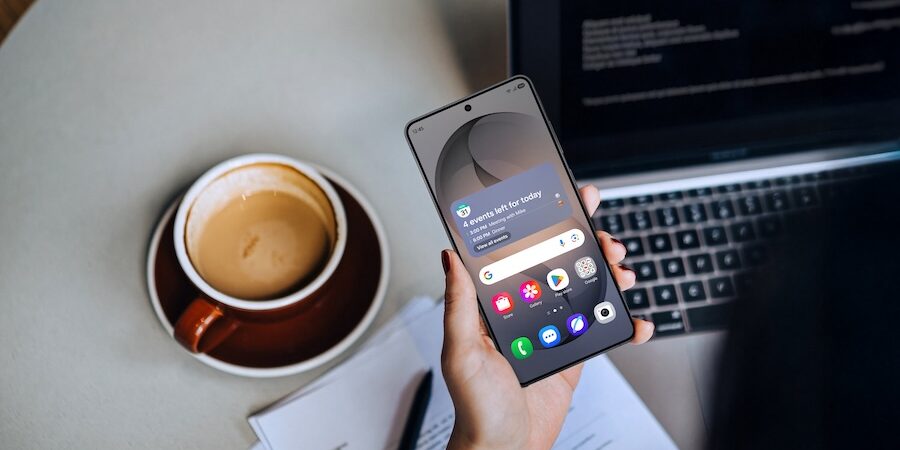
Business on the go is great, but sometimes you also need the full desktop experience to get the job done. Samsung DeX, one of the most useful features on Galaxy mobile devices and tablets, makes this happen. It lets you extend your device to a larger screen, creating a desktop-like experience. Once your device is connected to a display, you may simultaneously work across multiple apps, much like on a PC.
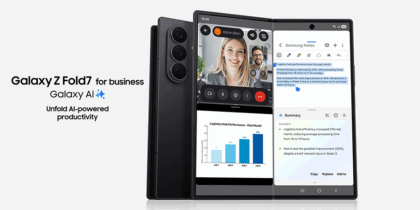
On the latest Samsung mobile devices — Galaxy S26 Series, Galaxy Z Fold7 and Galaxy Tab Active5 Pro — you can run DeX wirelessly on any display that supports Miracast. DeX works on Samsung Smart TVs, too, transforming them into tableaus for presentations and other tasks that benefit from an expansive display.
For a more traditional desktop experience, Samsung also has a Smart Monitor line, which supports wireless DeX. With a Bluetooth keyboard and mouse, you can create a streamlined DeX setup to power through your workday without ever booting up a PC or connecting a cable.
Without a Smart Monitor or Miracast-enabled display, DeX can still work, but through a USB-C connection from your mobile device to the display, or through an adaptor and HDMI cable.
Setting up wireless DeX on your Samsung Smart Monitor or TV
When you want to take advantage of wireless DeX, here’s how to set it up on your Samsung Smart Monitor or TV:
- Begin by plugging in your Smart Monitor or TV and turning it on.
- On your Galaxy S26 Series, open the Settings menu and tap “Connections” to confirm Bluetooth is on.
- Go back to Settings and tap “Connected devices” to open that menu.
- Now click the Samsung DeX tab, opening a new menu, and tap “Connect wirelessly.”
- When the Smart Monitor or TV shows up on the list, click it. In the pop-up window that appears on the mobile device, tap “Start now.”
- When the pairing request appears on the Smart Monitor or TV, click “Accept” or “OK,” depending on the model, to launch DeX.
Adding a keyboard and mouse
With DeX enabled, you may use your mobile device as a touchpad. But for a true desktop experience, you’ll likely want to add a Bluetooth keyboard and mouse. Here’s how.
- Put your keyboard and mouse in pairing mode, following the manufacturers’ instructions.
- Open the Settings app on your Samsung mobile device and navigate to the Bluetooth menu.
- Select the keyboard and mouse from your Bluetooth menu.
- You may be asked to type in a verification code on your keyboard to complete pairing.
Once paired with your DeX-enabled device, the keyboard and mouse make it easier to work in your favorite productivity apps, including Google Workspace, Cisco Webex, Microsoft Office, Microsoft Remote Desktop, Citrix Workspace and Zoom Workplace.
Samsung DeX vs. screen mirroring
You may have seen other mobile devices that offer screen mirroring, but that feature functions quite differently than DeX. With typical mirroring, your device’s screen is duplicated on another display — still retaining its original shape and layout. And what you do on the device screen happens on the linked display, too.
With DeX, your second display functions independently. As a result, you may work just as freely as you would on a desktop PC, regardless of what’s happening on the mobile device. These dual screens allow you to use DeX for more than just sharing presentations or multimedia on a larger monitor.
Plus, if you want to get more done without connecting to an external display, Samsung Galaxy tablets, such as Galaxy Tab S11 Series and Galaxy Tab A11+, can switch to a DeX experience with the push of a button.
Make the most of the S26-DeX connection
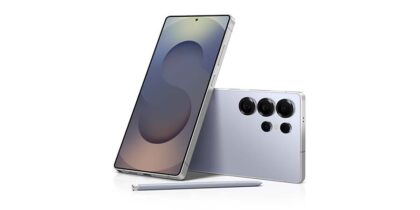
DeX complements several Galaxy S26 Series features that support writing, research and content production across your mobile device, tablet, PC or TV. That includes the plethora of AI tools for a mobile workforce, whether it’s product research with Circle to Search, information processing with Note Assist, report and email drafting with Chat Assist and language translation with Live Translate and Interpreter.
On Galaxy S26 Series, the DeX connection may extend to a post-work, wind-down gaming session, too. That’s because Galaxy S26 Series comes with the most powerful processor yet on a Samsung mobile device, and it’s specifically designed to support gaming. This ensures smooth gameplay and lightning-fast responsiveness, even in graphic-intensive, console-level games.
AI features, such as Photo Assist, make Galaxy S26 Series useful for social media and content creation, too. It enables precise customization of images, whether to add objects, restore details or apply new styles. It can even pull items from Samsung Gallery and naturally blend them into a scene with lighting and shadow effects. The Creative Studio feature on Galaxy S26 Series levels this up through the creation of playful illustrations and 3D cartoons, all of which becomes easier on the larger canvas DeX provides.
Discover more of what the Samsung S26 Series can do for your business and enjoy exclusive volume pricing, bulk trade-in discounts, free shipping and more with a Samsung Business Account.