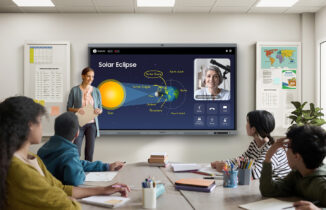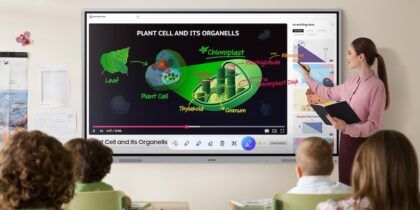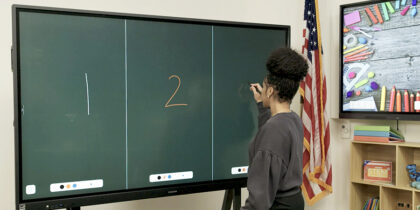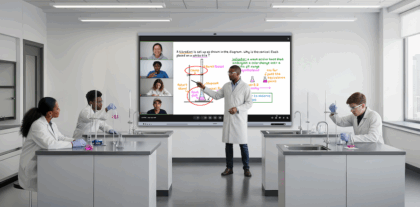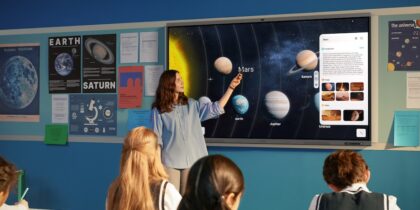
Technology-powered interactive displays are changing how teachers and students engage with one another in the classroom. When lessons become more collaborative and participatory, engagement increases, and so does comprehension and retention.
Samsung WAF — including the newest Pro model WAFX-P — and WEFX interactive displays are built for this purpose, equipping classrooms with a variety of tools that help teachers craft more dynamic lessons while giving students more opportunities to actively participate. The combination fosters a more collaborative learning environment where ideas are shared; feedback is immediate, and everyone stays involved.
To help educators put these capabilities into practice, here are eight effective ways to use interactive displays in everyday classroom activities.
1. Get competitive in the classroom
One of the ways to engage and motivate students is through friendly competition. Thanks to the touchscreen functionality of WAF, WAFX-P and Interactive Display WEFX OS-Free, which functions without a built-in operating system, teachers can easily gamify the learning environment. This helps students put their learning to the test in lighthearted, engaging ways. They might race to see who solves an equation faster or find a prepositional phrase first, and directly on the board itself. Interactive displays like Samsung WAF and WEFX support multi-writing with up to 40 touchpoints, while the WAFX-P counts up to 50, so a large group of students can compete simultaneously.
2. Share knowledge resources
When presenting a lesson, teachers often have several resources to share and need to switch between them seamlessly. Using the EDLA-certified Samsung WAF and WAFX-P, they can take advantage of split-screen, multi-window and multi-touch modes to more easily and dynamically display all the information needed for the students. That info can be easily called up, too, thanks to 32GB of storage on the WEFX, 64GB on the WAF and 128GB on the WAFX-P. Through screen sharing on the WAF and WAFX-P, you may send those same resources to up to nine student devices, regardless of type. While the WAF and WAFX-P run on Android OS 14 and 15, they also support Apple iOS and MacOS, Microsoft Windows and ChromeOS. This helps ensure all students remain connected to the lesson material.
3. Highlight what’s important
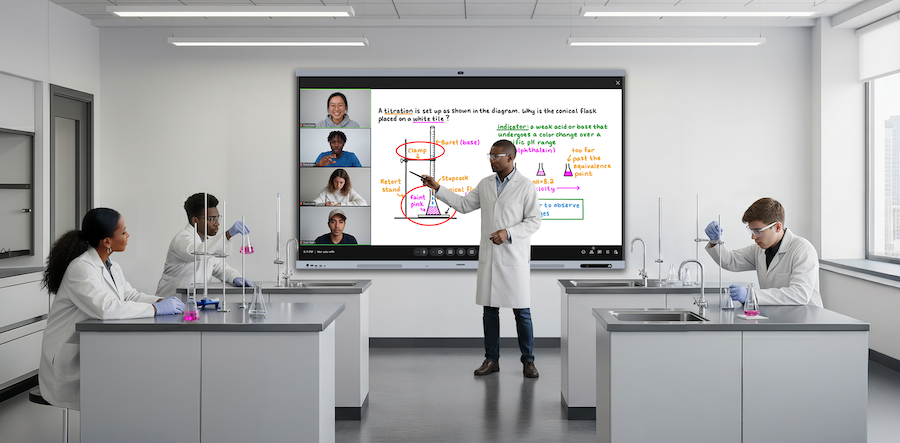
Anything displayed on the WAF, WAFX-P and WEFX stands out thanks to the bright, vibrant visuals, whether it’s text, images or other content. WAFX-P takes this further as the brightest model in the lineup, delivering up to 450 candelas per square meter. For more targeted highlighting, switch on the Markup tool on the WAF and WAFX-P, and draw further attention to any element on screen with annotations, using the dual pen or a finger. Students are able to join in, too. On Samsung WAFX-P, the Spotlight tool allows you to show only a specific area of the screen, so students can focus specifically on that part.
4. Travel beyond the classroom
One of the effective ways to use an interactive display for teaching and learning is to play and display audio and video files online. Teachers can use the display’s web browser to enjoy an interactive tour of Ellis Island in New York while teaching a history lesson, for example, or take a virtual field trip to Philadelphia’s Museum of the American Revolution, all without having to leave the classroom. The 2GB of RAM on the WEFX, 8GB on WAF and 16GB on WAFX-P ensure the media all runs smoothly, and the 20-watt speakers and 20-watt subwoofer in WAFX-P projects the sound to the back of the classroom, embracing and immersing all students.
5. Use preloaded templates to customize a lesson
Samsung WAF and WAFX-P Interactive Display can be customized with preloaded templates including gameboards, calendars, maps, sheet music and menus. Creating a daily agenda with a template helps keep everyone on track. Built-in apps and tools, such as Note, provide instant access to mind maps, math tools, grids, shapes and more. With Split Note Mode, you can take notes on up to four independent zones on a single page, allowing multiple students to work in each at the same time. Write and draw with the Text Pen feature, which converts handwritten notes into easy-to-read text, to solve a math problem, brainstorm project ideas or explain a new concept. Access these applications and tools more easily and quickly by pinning them directly to the home screen bar.
6. Share presentations as needed
Sharing is essential to effective teaching, and Samsung interactive displays make it easy to move content wherever it’s needed. With screen mirroring to and from nearly any device, teachers can create presentations, lessons and documents at home, then bring them into the classroom by connecting through the USB Type-C port.
Using the built-in document viewer, teachers can open Microsoft Word, PowerPoint, Excel and PDF files directly on and from the display to make edits. For more advanced workflows, the OPS slot can transform the display into a full Windows device. Presentations can extend beyond the board as well. Desktop Sync allows teachers to reverse the broadcast and cast the panel’s screen directly to student devices, while the HDMI Out setting makes it easy to share content on a secondary classroom display. All of it can be managed easily using the in-box remote.
7. Enable students to read along
Helpful sites such as Storyline Online feature popular children’s books that can be displayed on the interactive display, enlivening lesson plans and enabling students to read along. Storyline Online’s books are searchable by grade level, run time, author and title. Its videos also feature professional actors, and many school districts have access to other e-books, which teachers can download onto their own devices and share via the interactive display with the whole class.
8. Connect with remote students
When students are unable to attend class in person, remote learning technology enables them to easily participate from home. Teachers can use the videoconferencing solution and real-time collaboration features on Samsung interactive displays to support remote and hybrid lessons. WAFX-P levels this up further with in eight built-in microphones and a 48MP AI camera, which tracks and frames speakers automatically. For students who need to miss class entirely, WAFX-P can transcribe lessons using AI-enabled voice transcription and even create a lesson summary, complete with headers and time stamps.
Keeping students engaged
Interactive displays unlock a world of options for both teachers and students. When educators take advantage of all the potential interactive activities out there, they can create a highly effective learning environment that helps all students stay engaged.
Discover how one school district maximizes student and teacher engagement with Samsung Interactive Displays in this case study.
*Samsung AI Assistant app features will be available with a future software update in 2026.